1.Table of contents
- Introduction
- Activating a Tradeshift account (for Suppliers)
- Log on to the platform
- Navigating in Tradeshift
- Configure your Tradeshift account
- Profile configuration
- Managing your Network
- Creating an invoice / credit note (for Suppliers)
- Track a document
- Assistance
2. Introduction
a. Eiffage Benelux is switching to e-billing
In order to speed up our digital transformation and reduce the time it takes to post invoices and expedite their processing, we decided to work with Tradeshift’s e-billing solution.
This green and cost-saving e-solution is not only beneficial for Eiffage Benelux but for you too!
- Efficient and reliable, it significantly speeds up the billing process. And because it is totally automated the risk of human error is reduced.
- Transparent: suppliers using the platform can check the real-time status of submitted invoices.
- Fast: uploading an invoice to the portal is far quicker than sending it by post.
- Easy tracking: you will receive confirmation for each invoice you upload to the portal. In this way, suppliers can be sure that their documents have been received.
- Multilingual: French, Dutch, English
b. How exactly does it work?
Suppliers send us their invoices via one of the following channels. We receive the invoices and any attachments directly in our respective ARCOs - so need to scan or OCR the documents.
- Web Interface
Via https://go.tradeshift.com, suppliers fill in the required fields, and then attach their original invoices and any appendices. These will be automatically sent to ARCO in the concerned subsidiary (or temporary trading company)
- PDF to XML
Thanks to this feature, suppliers can upload their invoices in PDF format. The Tradeshift application automatically converts them to XML before sending them to ARCO.
- Full EDI
Suppliers sending a large number of invoices will be offered the option to link their billing software for seamless connectivity.
c. Which Eiffage Benelux companies are concerned?

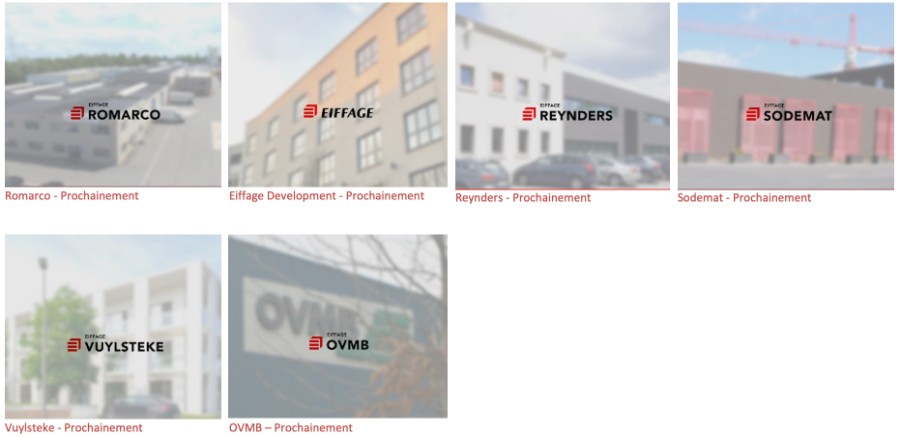
3. Activating a TRADESHIFT account
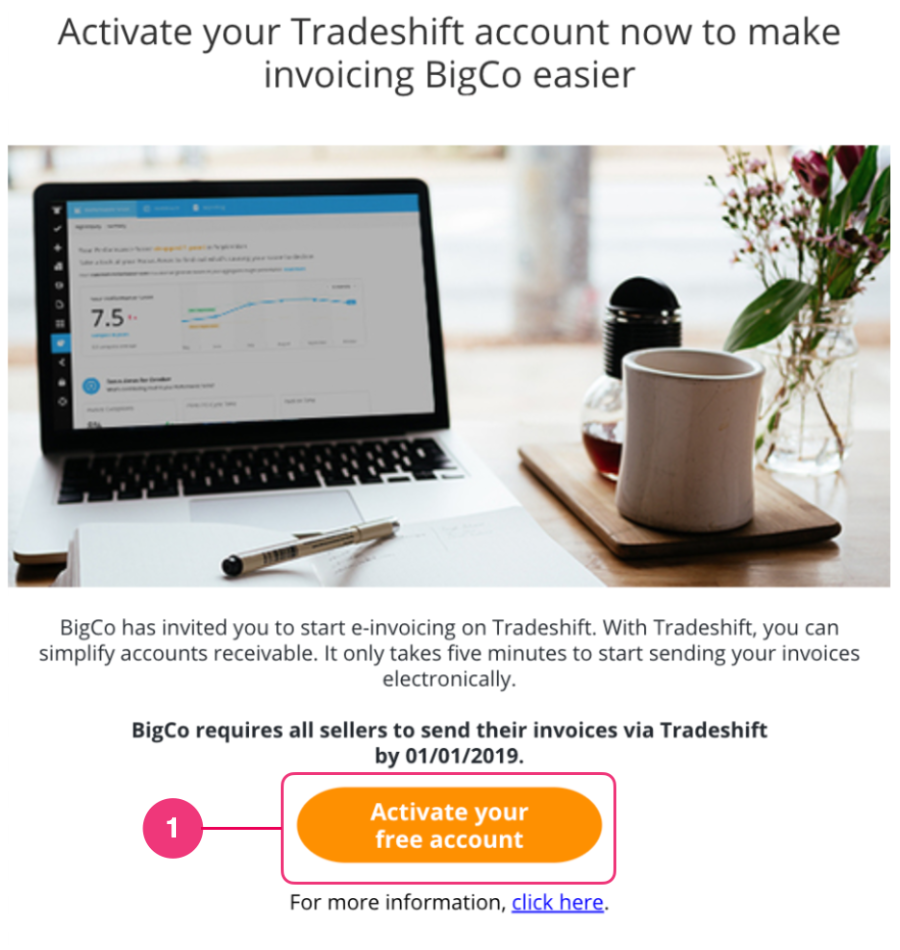
After you have received your onboarding campaign email,
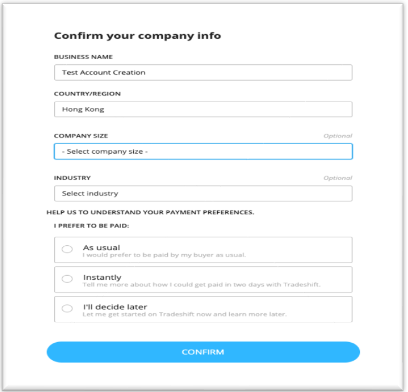
Ensure that you select the country in which your company is registered as this can not be changed. Your tax reference/company number depends on it.
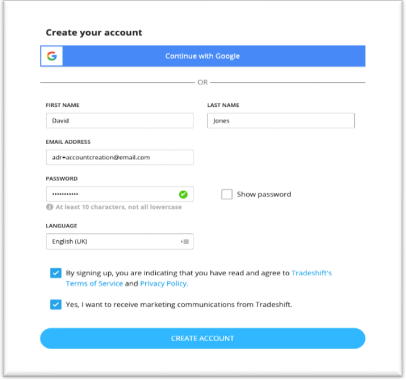
Continue entering your personal information (based on the profile of your company).
Make sure the email address is correct! Finally, check your inbox or spam/junk inbox to find the verification link.
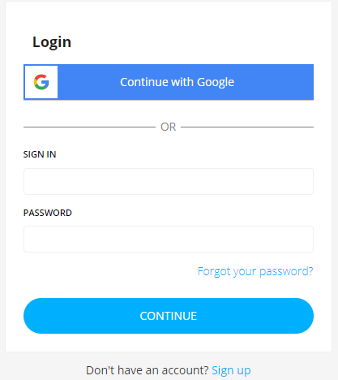
4. Log on to the platform https://go.tradeshift.com/
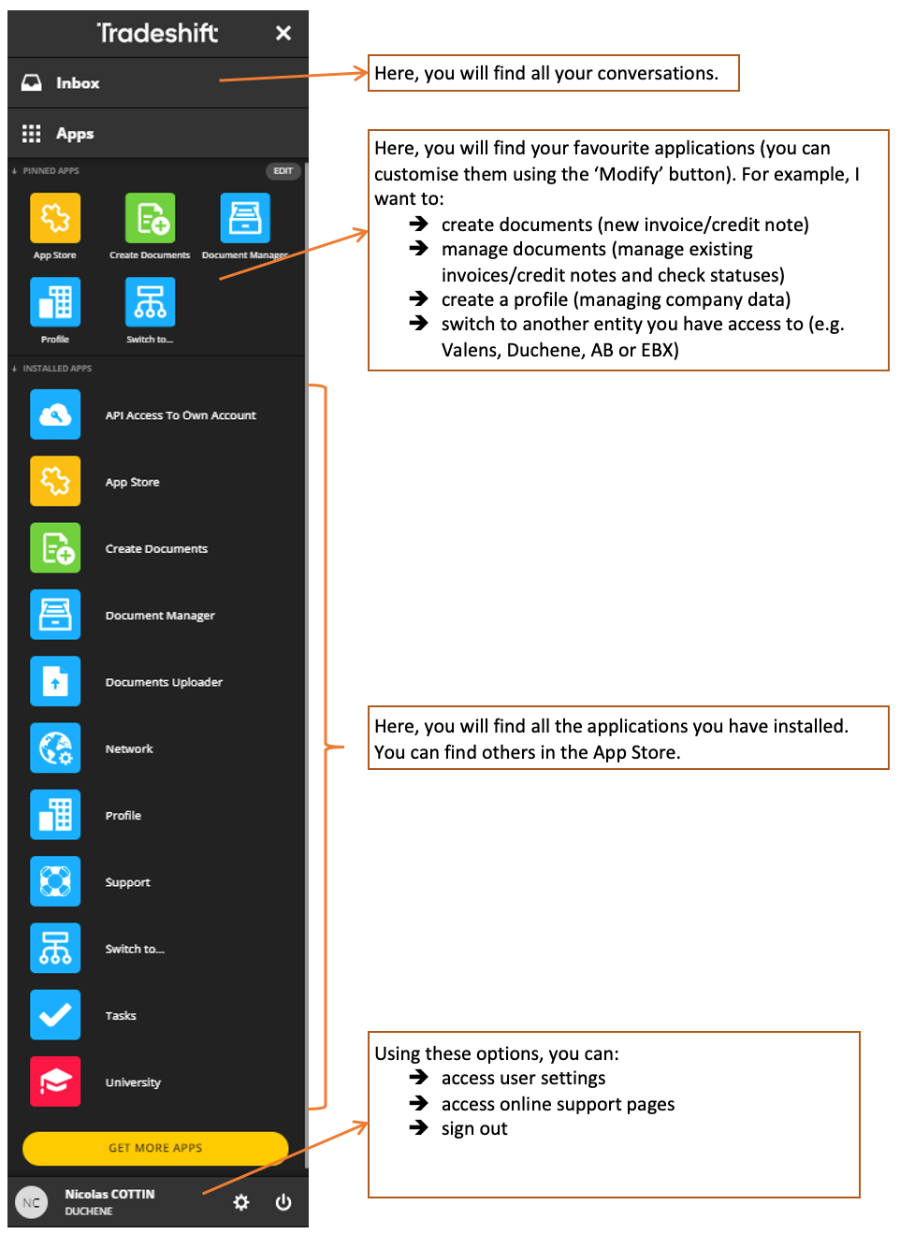
5. Navigating in TRADESHIFT
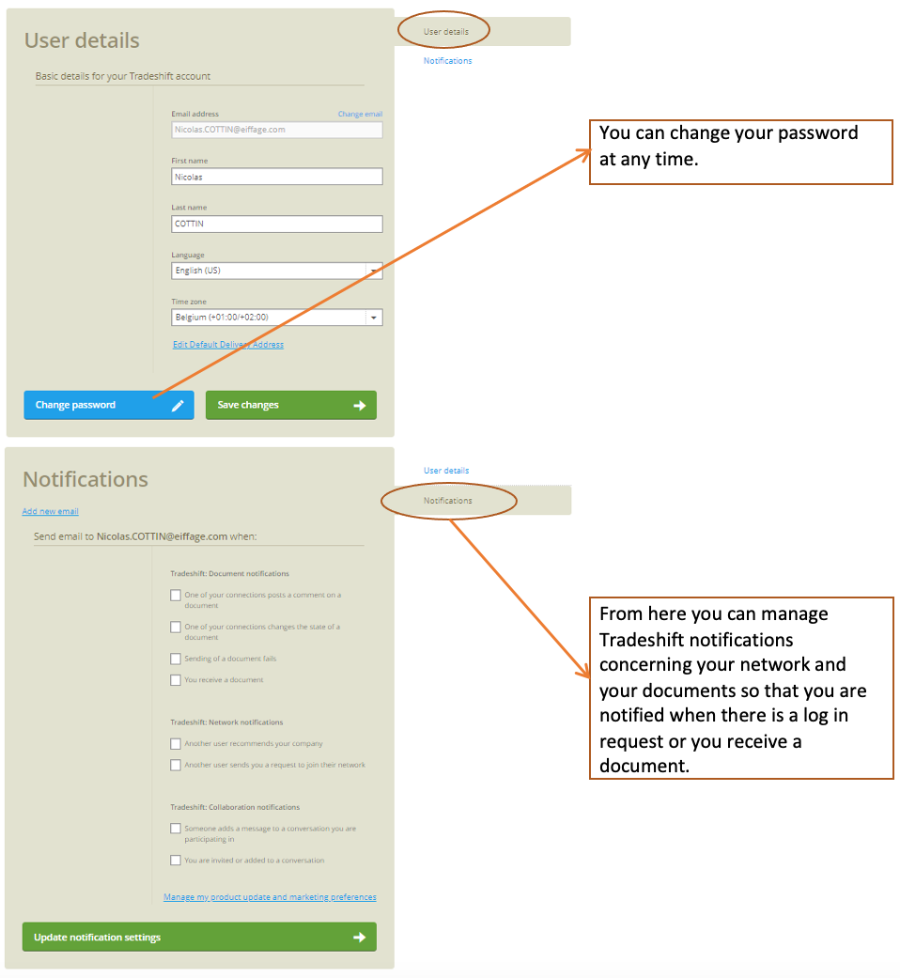
6. Configure your TRADESHIFT account
When you log in for the first time, you can personalise your account using a range of features to optimise your use of the platform, such as choosing the language, configuring your profile and creating notifications.
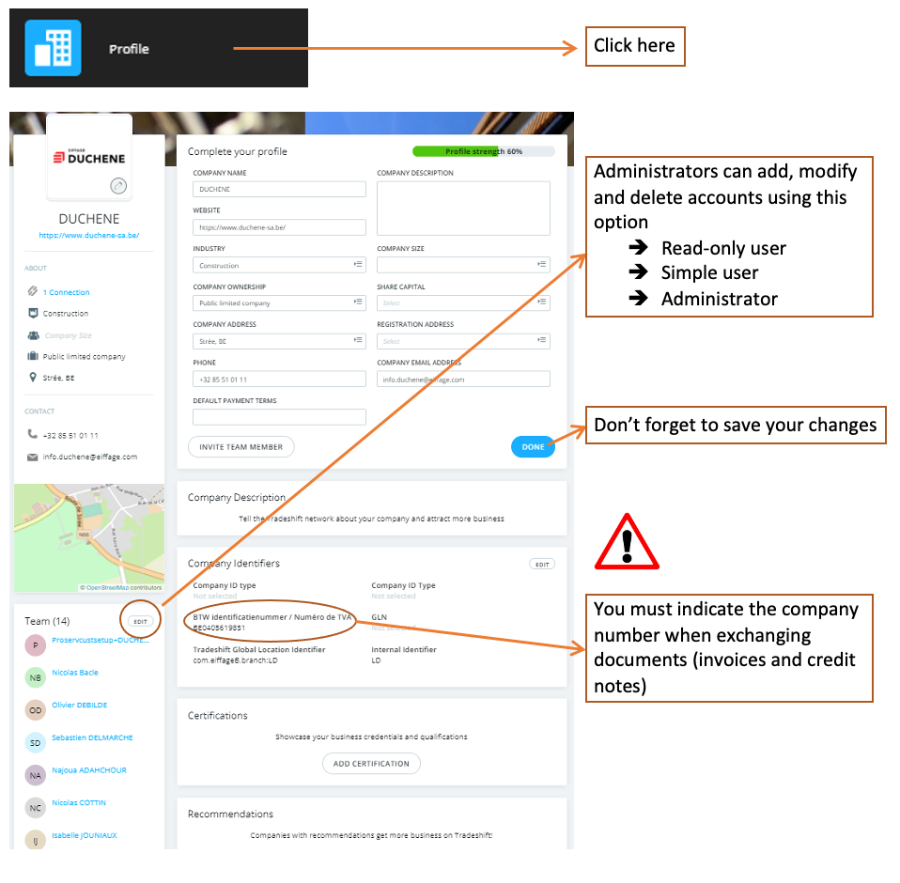
7. Profile configuration
After creating your account, complete your profile by entering the following information:
- Company (Logo, banner, description, certifications …)
- Website
- Sector
- Address
- Telephone
- Add media (photos, videos …)
8. Managing your network
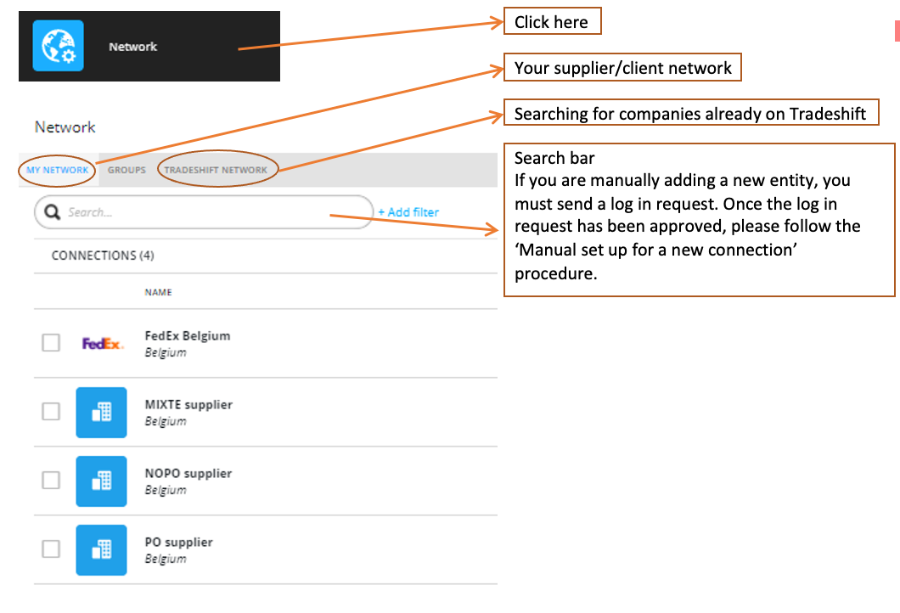
You can manage your supplier/client connections via the ‘Network’ application. From this page, you can:
- Search for a company
- Send connection invitations
- Delete connections
- Add and manage connection options e.g. communicating with your ARCO/CODA (daily statement of account)
Click here to learn more.
9. Creating an invoice/credit note (for suppliers)
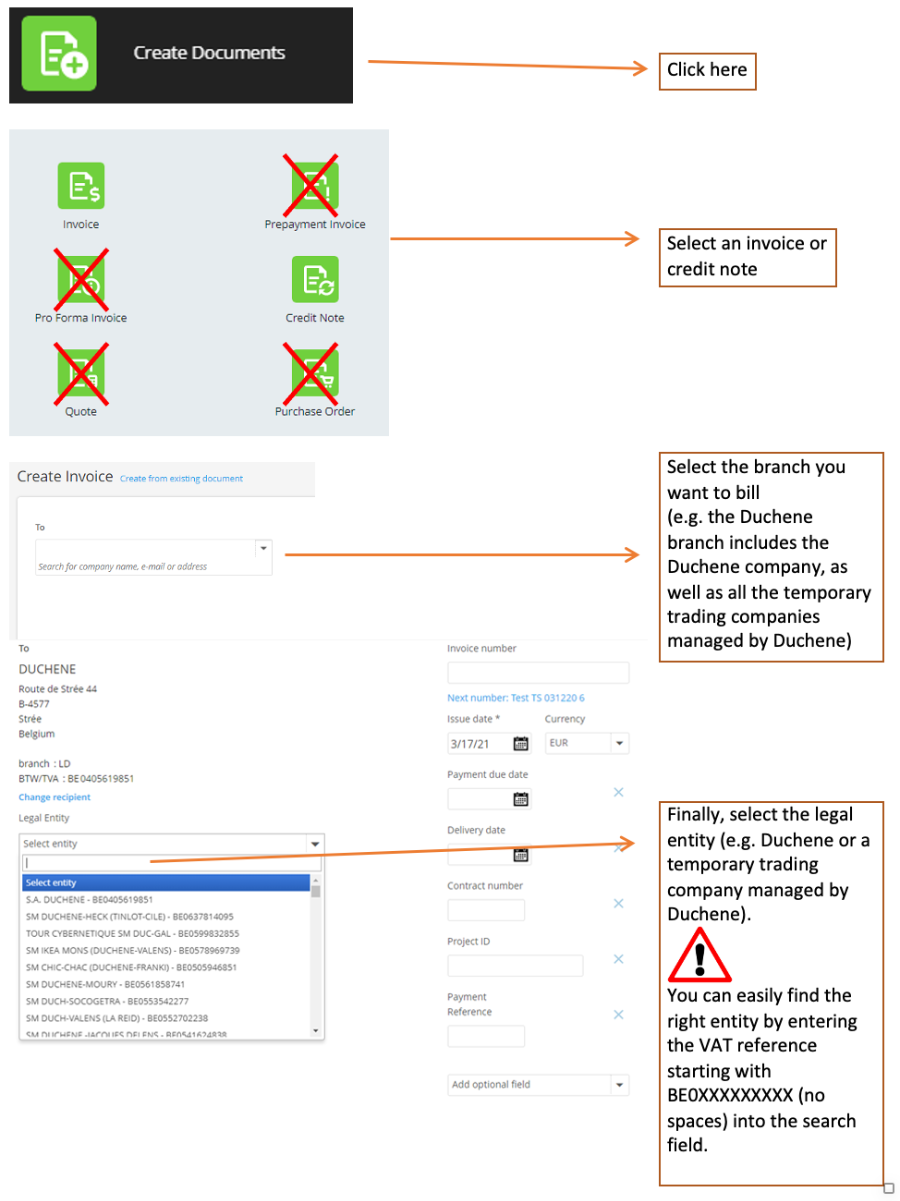
Using Tradeshift, you can exchange (with your client/supplier) invoices and credit notes using different sending options as long as you respect the pre-defined validation rules (see below).
a) Manual entry in the application
b) Importing and electronic recognition of a PDF file (OCR)
c) Connection integrated into your accounting software/ERP (Full EDI – Electronic Data Interchange)
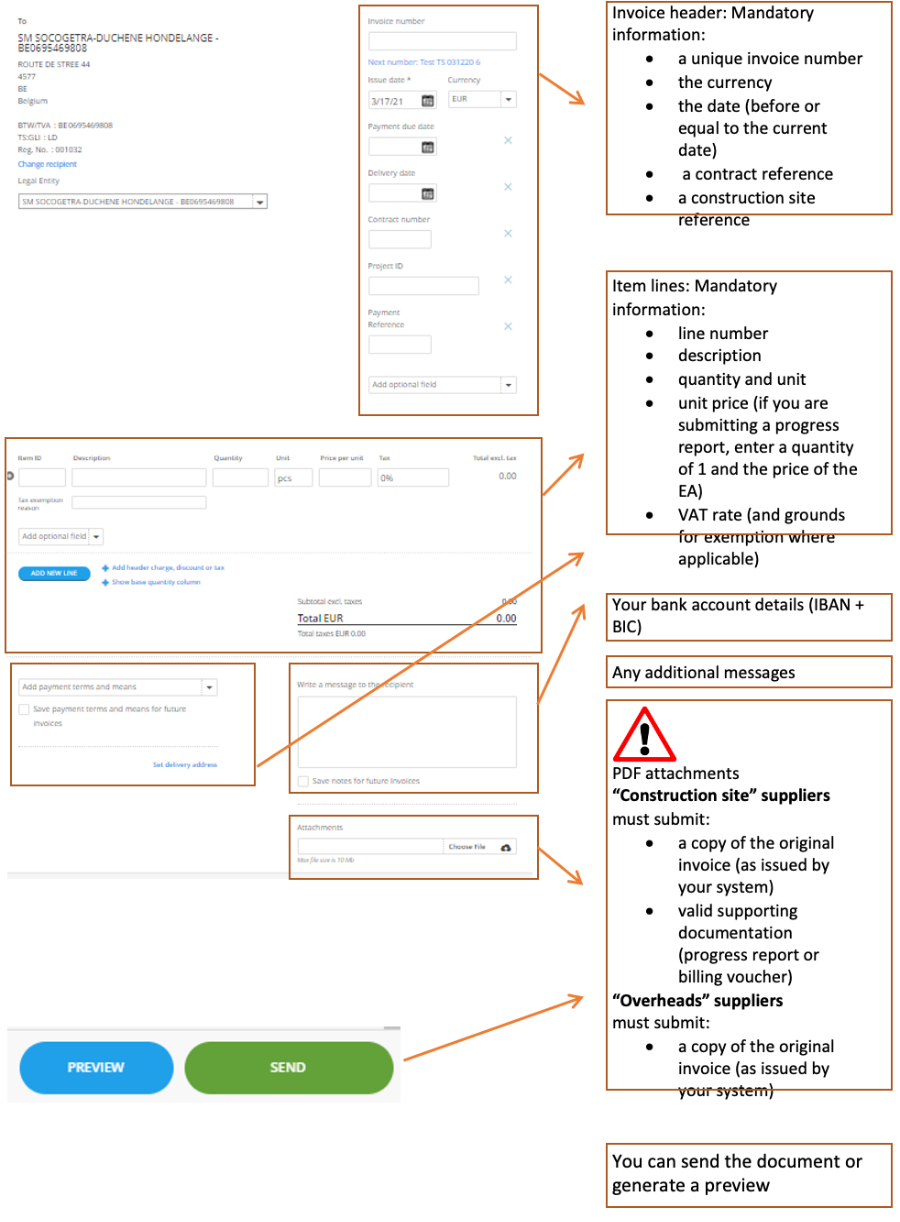
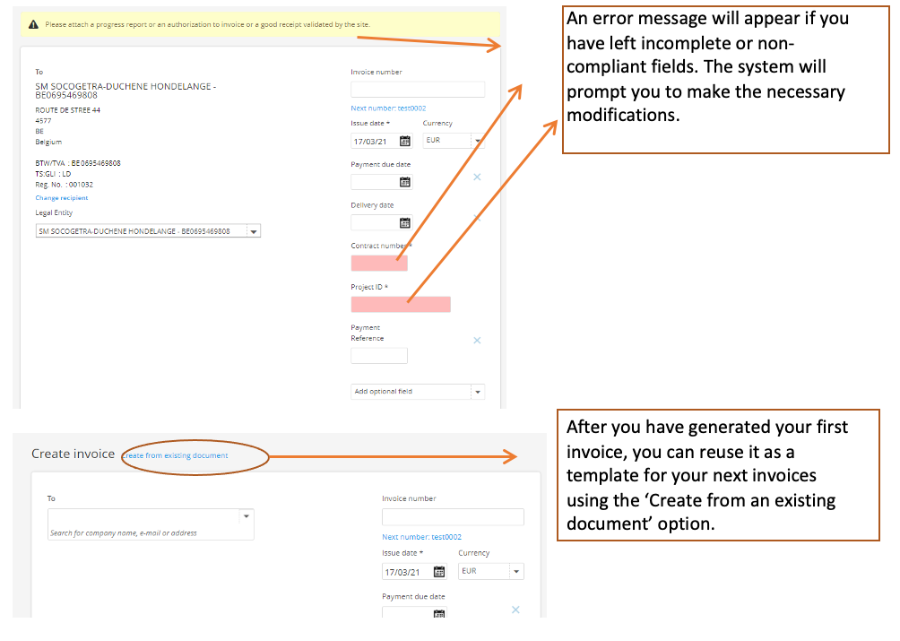
a) Manually entering an invoice / credit note
Click here to learn more.
b) Importing an invoice / credit note
Click here to learn more about the Document Uploader app.
You can import invoices and credit notes directly from the platform. Once the document has been uploaded, it must be validated.
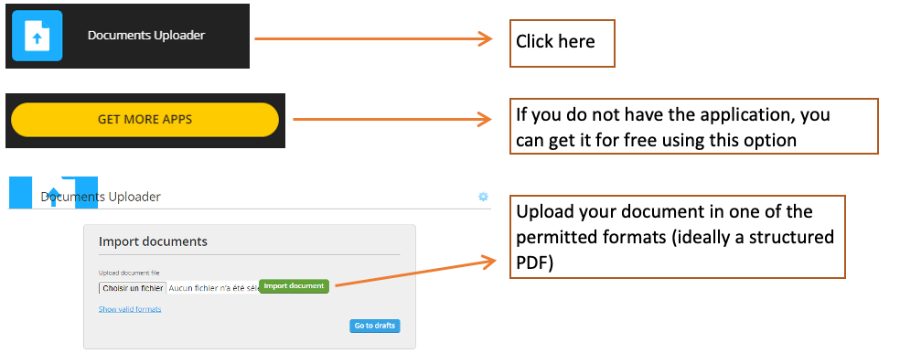
A document can only be validated if all mandatory and missing fields are correctly filled in on the automatically retrieved invoice. The document will have a ‘draft’ status and will not be sent to the recipient until the verification process is complete. You will receive an email a few moments after you upload the document prompting you to validate it. When you click on the received email, you will be redirected to the Tradeshift document.
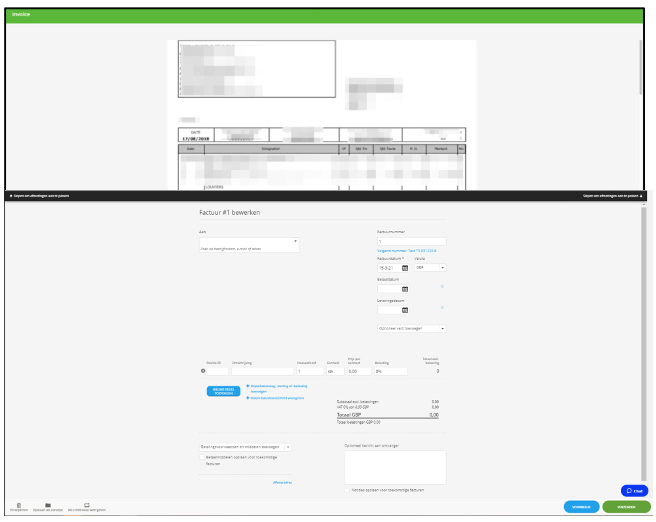
c) Automatically send documents in full EDI mode
You can set up automatic EDI document sending. This integrated solution extracts invoicing data from your invoicing system (accounting software, ERP, etc.) and sends it automatically to your clients. Click on the following link for more information or contact your expert at Eiffage Benelux if you are interested in using this solution. If you will be sending a large number of invoices to Eiffage Benelux, we will help you configure each step so that you can use this solution.
Click here to learn more.
d) Invoice validation rules
EIFFAGE BENELUX has implemented the following validation rules on the Tradeshift platform in order to receive the information required for processing your invoices and credit notes rapidly and efficiently.
- Legal identifier : all suppliers must have a legal identifier.
- Belgian and European suppliers must provide a VAT number, or a legal identifier if the supplier does not have one.
- VAT exemption: the reason for the exemption must be indicated on the invoice.
- Invoice / credit note date the date of the document is mandatory and can not be later than the current date.
- Invoice due date : the invoice due date is mandatory and can not be later than the current date.
- Bank account : the bank account information must include the BIC IBAN references.
- Structured communication : if you are using structured communication, you may only use the ‘ 123/1234/12345 ’ format.
- Cost centre : for ‘construction site’ suppliers, a ‘construction site’ reference is mandatory.
- Contract number : for ‘construction site’ suppliers, a contract number or billing authorisation reference is mandatory.
- Attached documents: please upload documents in PDF format:
- a copy of the invoice/original credit note
- for ‘construction site’ suppliers supporting documentation ((progress report, billing vouchers, etc.) is mandatory. The absence of duly signed supporting documentation will result in the rejection of the invoice
- only PDF attachments under 8 Mb are accepted
10. Track a document
Click here to learn more about the Document Manager app.
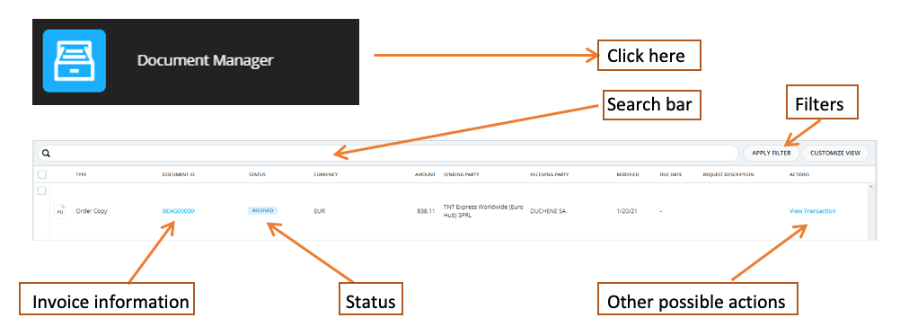
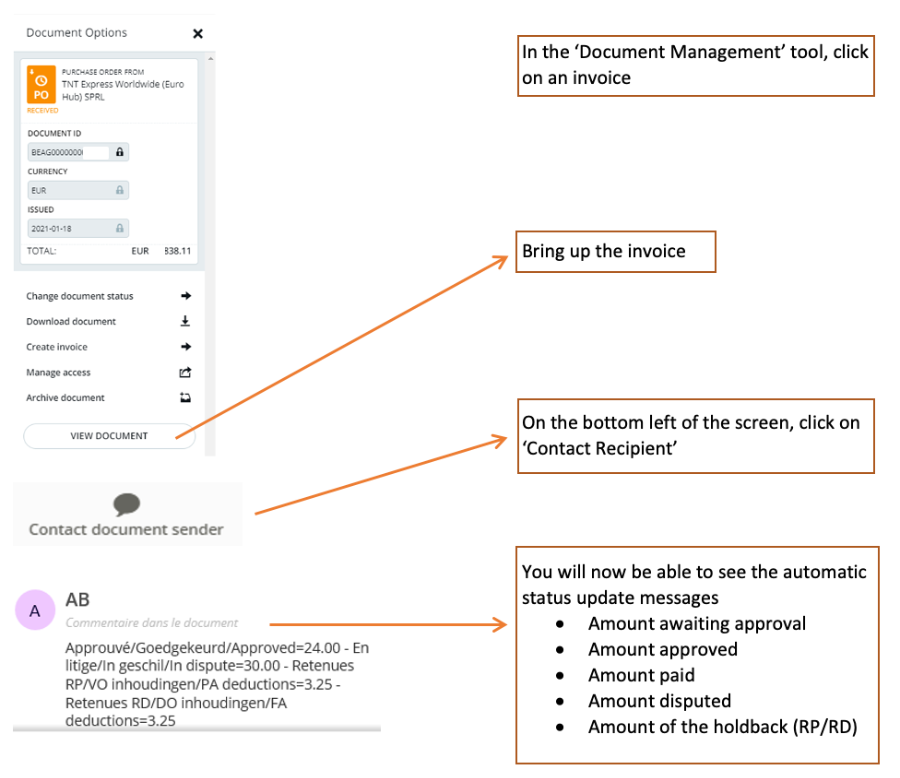
You can track the status of your documents in real time thanks to the automatic messages that you will receive each time the status changes.
11. Assistance
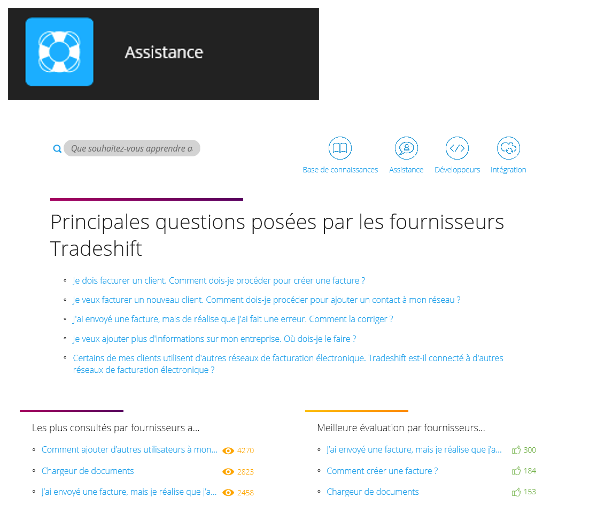
a. Tradeshift integrated support
If you have any problems finding tools or using Tradeshift, there are various support options to help you.
b. Tradeshift University

It has a wide range of tutorials, videos and webinars.
c. Our dedicated supplier support page
Under development.
d. The accounting department
Cost controllers will be trained on how to use the solution and will be able to help you.
If you still can’t find the answer to your questions via these options, please email the address below. Your questions will be answered as soon as possible.
Support.tradeshift@eiffage.com